Complete Guide to JSON Formatting and Validation
JSON errors are usually small, but they waste time because they hide inside large payloads. A missing quote, a trailing comma, or an unexpected array shape can block an API request just as effectively as a major bug. The fastest way to work with JSON is to separate three jobs: check syntax, make it readable, and inspect nested structure.
What the JSON Formatter is built for
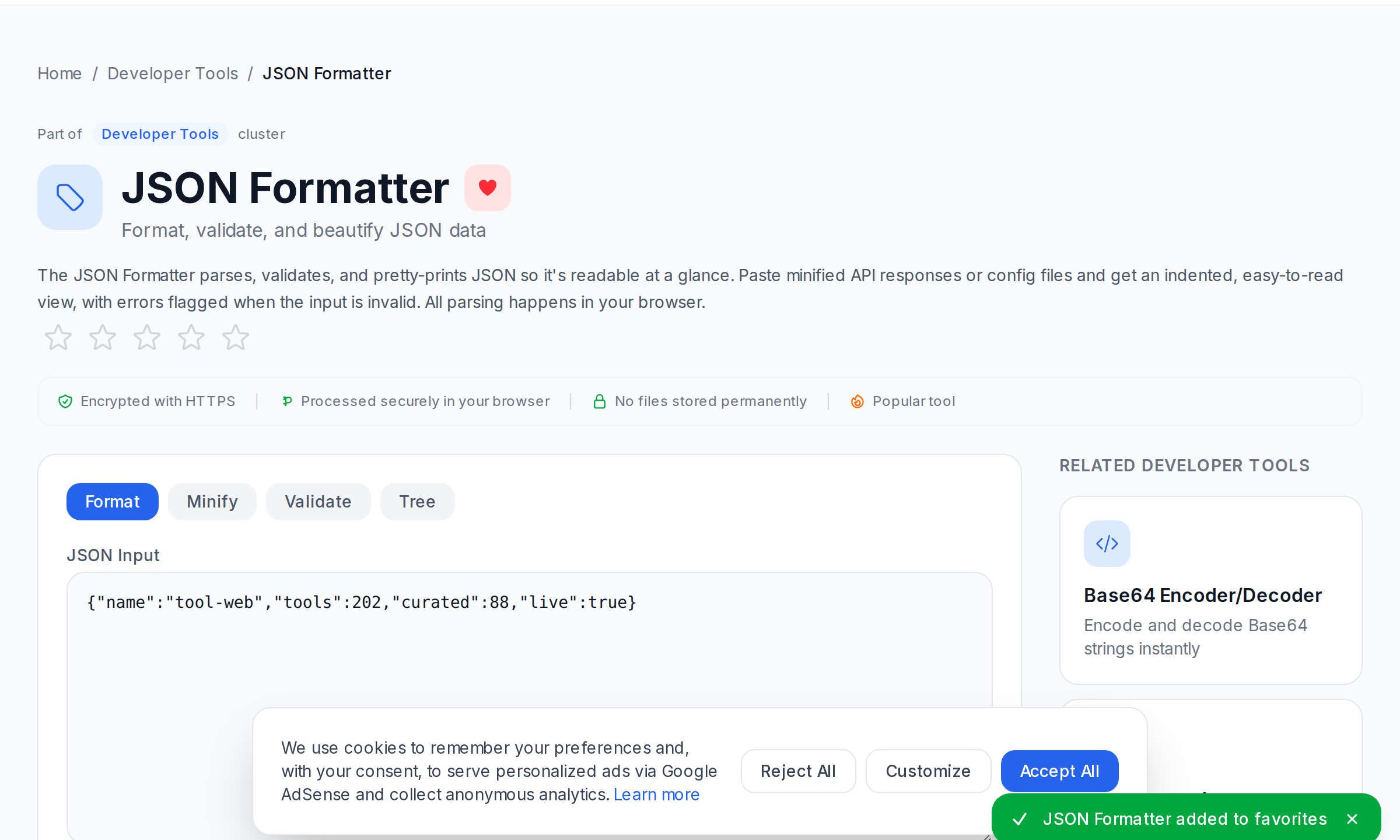
Tool-web's JSON Formatter has four practical modes: Format, Minify, Validate, and Tree. It also shows simple counts such as lines, keys, depth, and bytes. Everything runs locally in your browser, which matters when the payload contains tokens, internal IDs, or configuration values.
When to use each mode
- Format when the JSON is hard to read and you want clear indentation.
- Minify when you need compact output for fixtures, tests, or transport.
- Validate when you only care whether the JSON parses cleanly.
- Tree when the payload is deeply nested and scrolling through raw text is slowing you down.
A quick debugging workflow
- Paste the raw payload into JSON Formatter.
- Start in Validate or Format to catch parser errors immediately.
- Switch to Tree if the payload is valid but hard to inspect.
- Copy the formatted output into your ticket, test fixture, or documentation once you understand the data.
This is often faster than trying to spot structural mistakes inside minified JSON by eye.
Common mistakes the formatter helps expose
- Trailing commas copied from JavaScript objects.
- Single quotes where JSON requires double quotes.
- Unquoted keys that look fine in code but are invalid JSON.
- Unexpected nesting such as an array where an object was expected.
Syntax validation is not schema validation
This distinction matters. If JSON parses successfully, the syntax is valid. That does not mean the payload matches the structure your API expects. Tool-web's formatter tells you whether the JSON can be parsed and helps you inspect it, but it does not enforce a custom JSON Schema. For that, you still need an application-specific validator in your development stack.
How the formatter fits with other tools
Use JSON Viewer when you want a cleaner exploration experience focused on tree navigation, and use Data Validator when you are checking several formats in one place and only need a pass/fail syntax check.
Tips for large payloads
- Start with Tree when the formatted text would still be overwhelming.
- Keep the original minified value somewhere safe if you need to compare before and after.
- Remember that very large payloads still depend on your browser's available memory.
References
JSON work gets much easier when you let the parser do the tedious part and keep your own attention on the structure and meaning of the data.
Frequently Asked Questions
Can valid JSON still be wrong for my API?
When should I use Tree mode?
Does the formatter fix broken JSON automatically?
Is my JSON sent to a server?
Does Tool-web validate custom JSON Schema rules?
Related Tools
Try these free online tools mentioned in this article:
Related Articles
CSV to JSON Conversion: Methods and Best Practices
Convert flat CSV rows and structured JSON more deliberately by matching the real converter behavior to the shape of your data.
Developer's Guide to Base64 Encoding and Decoding
Use Base64 confidently for debugging and transport tasks, while keeping its limits clear: it changes representation, not security.
What's New: Enhanced JSON Formatter with Validation
Our JSON Formatter just got a major upgrade. Now with real-time validation, syntax highlighting, and error detection.
JavaScript Formatting and Minification Guide
Master JavaScript code formatting and minification. Learn why clean code matters for development and minified code matters for production.